
 Budi Mulyono
The Southwest Airlines Companion Pass remains one of the most coveted rewards in the travel loyalty landscape, offering a "buy-one-get-one" benefit that can be utilized for an unlimited number of flights during the life of the pass. However, as travel configurations become more complex—specifically in households where two individuals both hold the Companion Pass—technical limitations within Southwest’s digital infrastructure have begun to surface. Recent investigative testing and consumer reports have identified a specific friction point: the inability to add two separate companions to a single shared reservation via the airline’s desktop website. Fortunately, a functional workaround has been confirmed, shifting the procedural focus from traditional desktop interfaces to the Southwest Airlines mobile application.
The Mechanics of the Southwest Companion Pass
To understand the significance of this technical hurdle, one must first grasp the value and operational structure of the Companion Pass. Unlike traditional companion certificates offered by major legacy carriers, which are often limited to a single use per year, the Southwest Companion Pass allows a designated individual to fly with the pass holder for only the cost of taxes and fees (starting at $5.60 one-way for domestic flights).
To earn the pass, a traveler must either complete 100 qualifying one-way flights or earn 135,000 qualifying Rapid Rewards points in a single calendar year. For families, the "Dual Companion Pass" strategy is a popular optimization tactic. In this scenario, two parents (often referred to in the loyalty community as Player 1 and Player 2) each earn a pass and designate one of their children as their respective companion. This effectively allows a family of four to travel for the price of two tickets, provided the logistical requirements of the booking system are met.
Identifying the Multi-Holder Constraint
The primary issue arises when two Companion Pass holders attempt to book their travel on the same Passenger Name Record (PNR). In standard travel scenarios, booking multiple passengers on a single confirmation number is preferred, as it ensures the group is handled together in the event of flight delays, cancellations, or aircraft swaps.
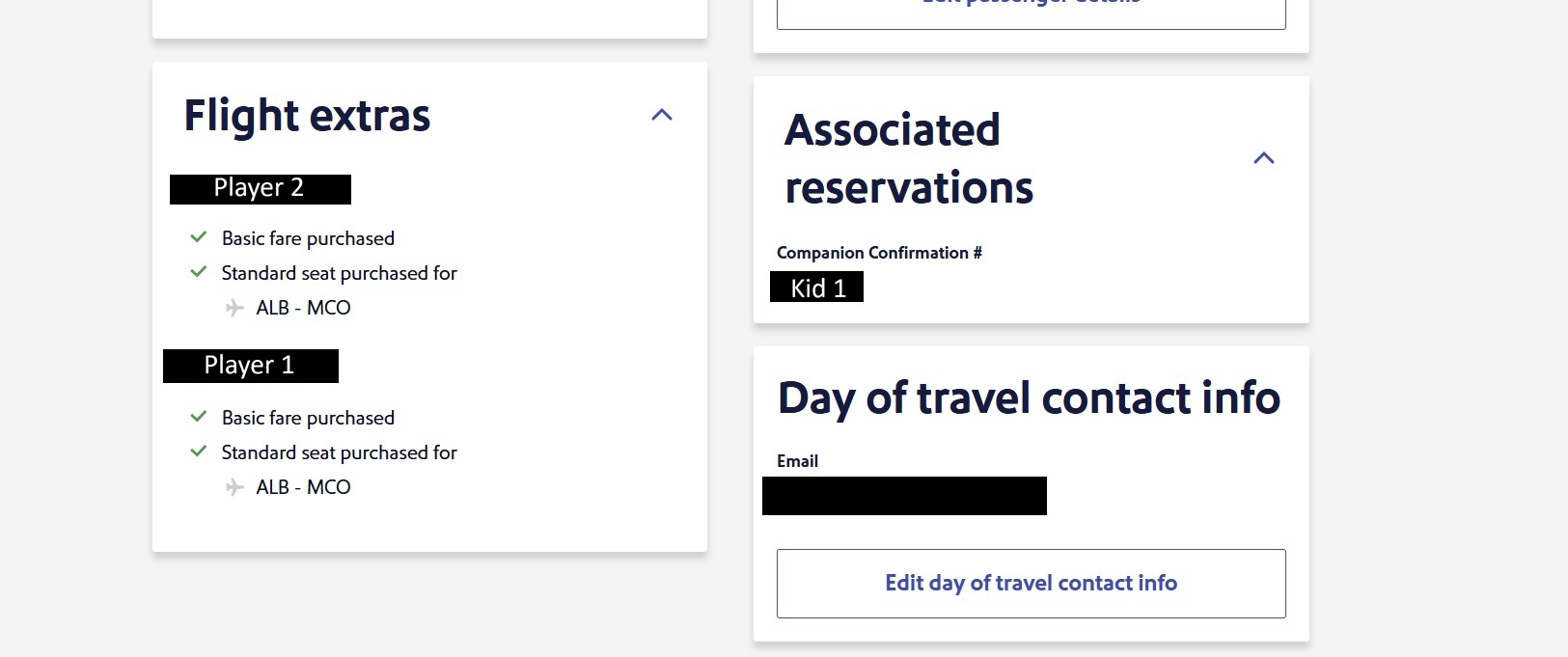
When a primary traveler (Player 1) books a flight for themselves and another traveler who also holds a Companion Pass (Player 2), the system initially functions as expected. Player 1 can navigate to the "Manage Reservations" section on the Southwest desktop site and successfully add their designated companion (Kid 1). However, when Player 2 attempts to add their own companion (Kid 2) to the same reservation, the desktop interface fails to provide the necessary "Add Companion" button.
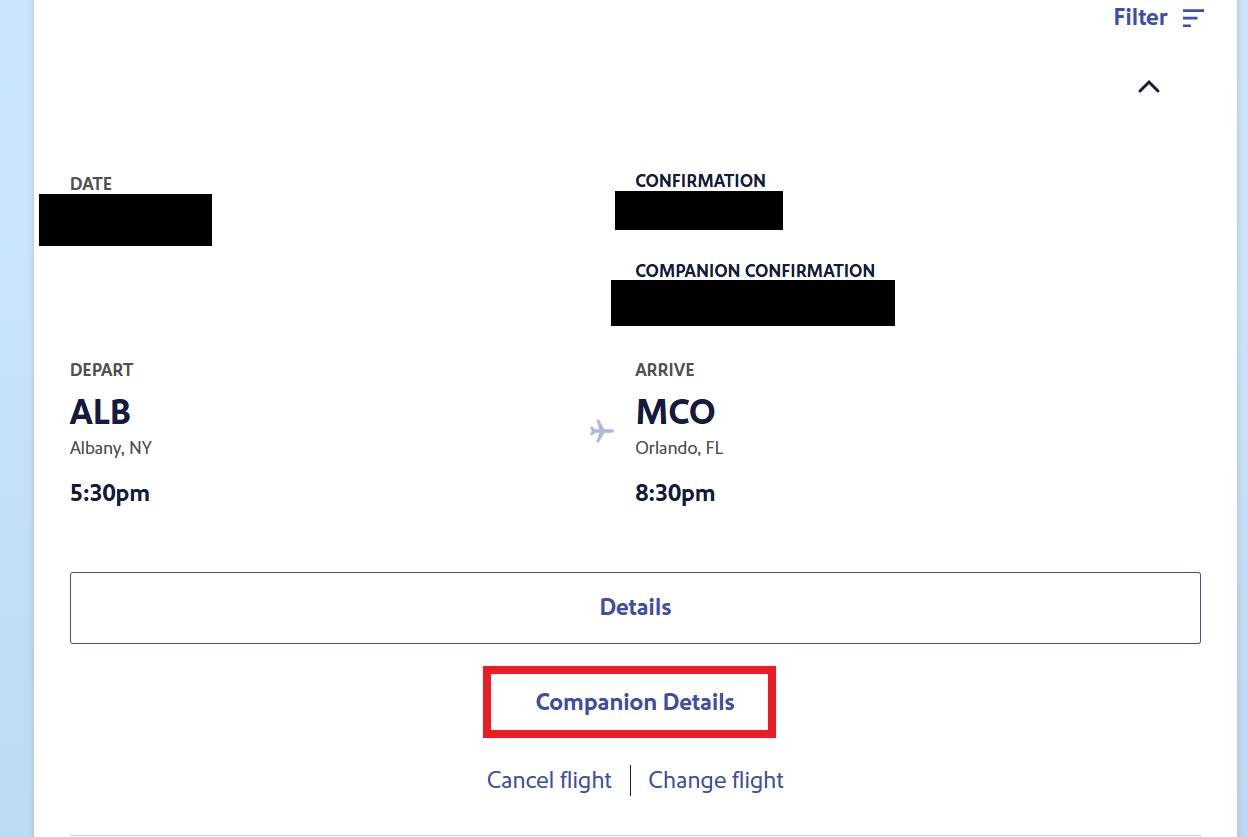
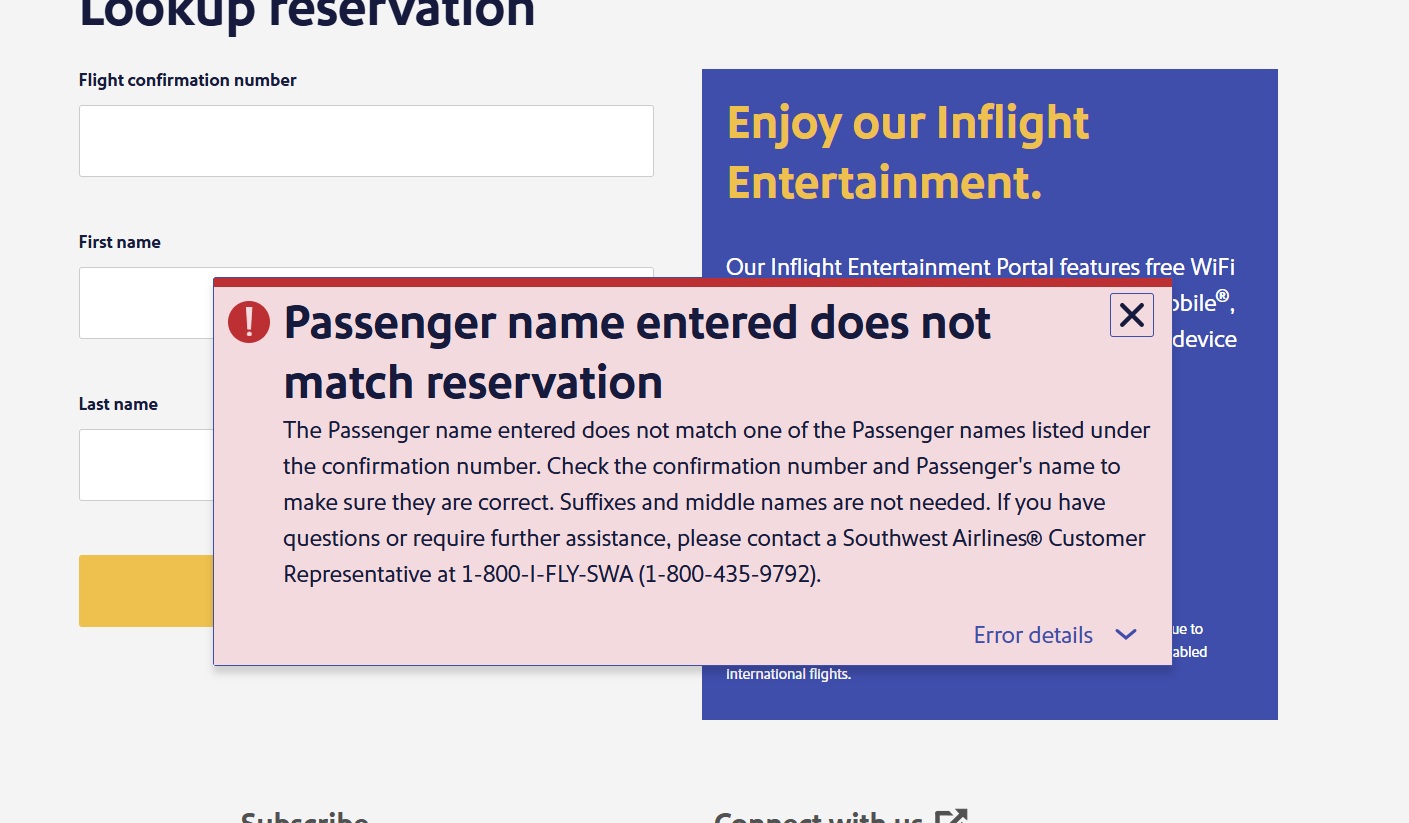
Instead of the booking option, the system frequently displays a "View Companion Details" link. Upon clicking this link, users have reported receiving a "name mismatch" error. This error occurs because the system recognizes that a companion (Kid 1) is already associated with the reservation. Because Kid 1 is not the designated companion for Player 2, the desktop validation logic creates a circular error, effectively blocking Player 2 from exercising their earned benefit within that specific reservation.
A Chronological Breakdown of the Technical Discovery
The identification of this workaround followed a series of consumer reports and subsequent verification. The timeline of this discovery highlights the discrepancy between different user interfaces within the same airline’s ecosystem.
- Initial Report: Several months ago, travelers began reporting to loyalty advocacy platforms that Southwest’s system appeared to prevent dual-companion additions on single PNRs. Customer service representatives reportedly informed some travelers that the only solution was to book separate reservations for each pass holder—a move that increases the risk of party separation during irregular operations (IROPS).
- Independent Testing: Travel analysts conducted a controlled test by booking two separate itineraries. In the first test, Player 1 booked a reservation for both Player 1 and Player 2. Player 1 successfully added their companion. When Player 2 logged in via a desktop browser, the system showed the reservation as having an associated companion but barred Player 2 from adding their own, citing the aforementioned name mismatch.
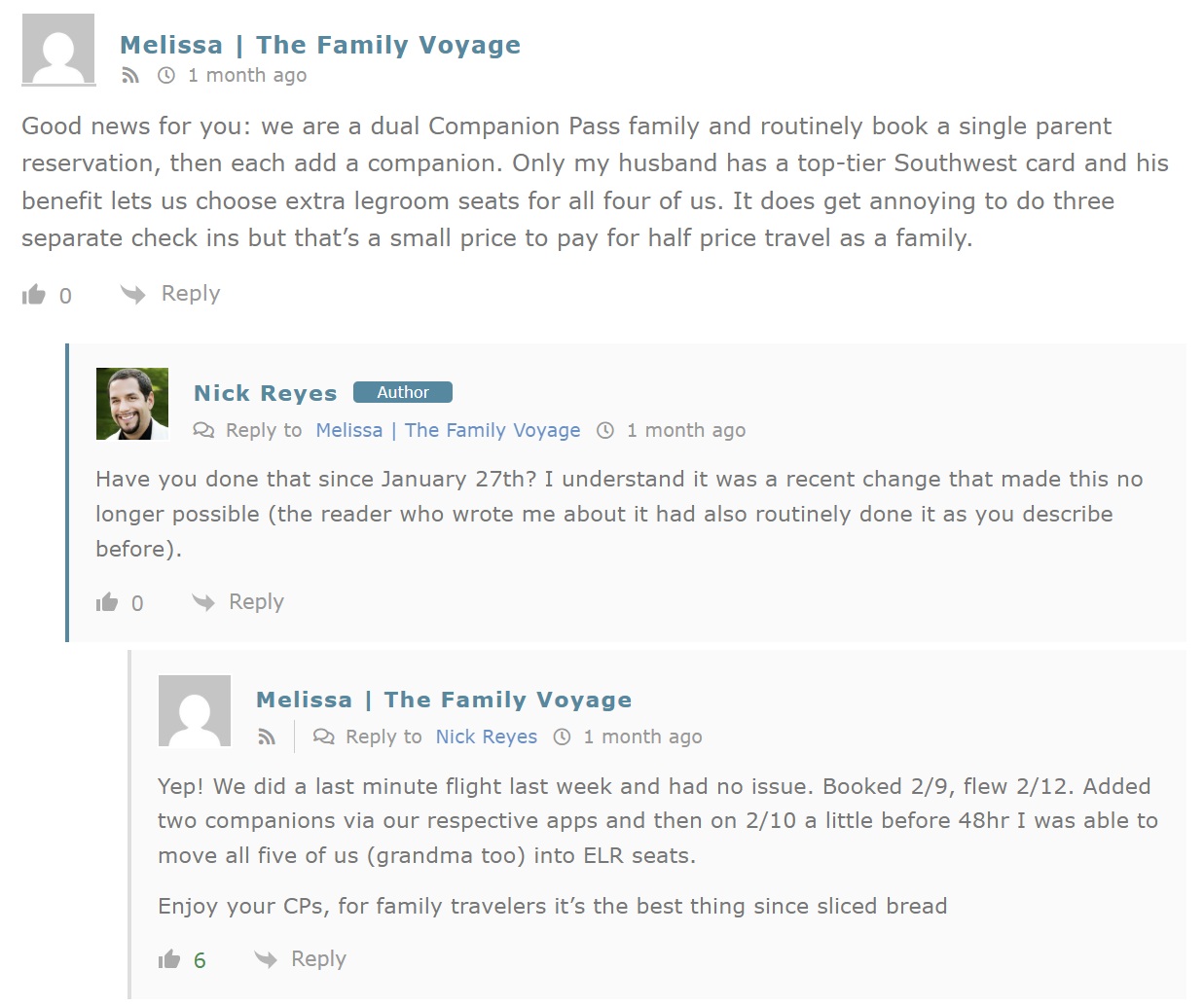
- The "Melissa" Tip: A breakthrough occurred when a frequent traveler, identified as Melissa, reported that she had successfully bypassed this restriction by avoiding the desktop site entirely. Her experience suggested that the mobile application utilized a different validation logic than the web-based portal.
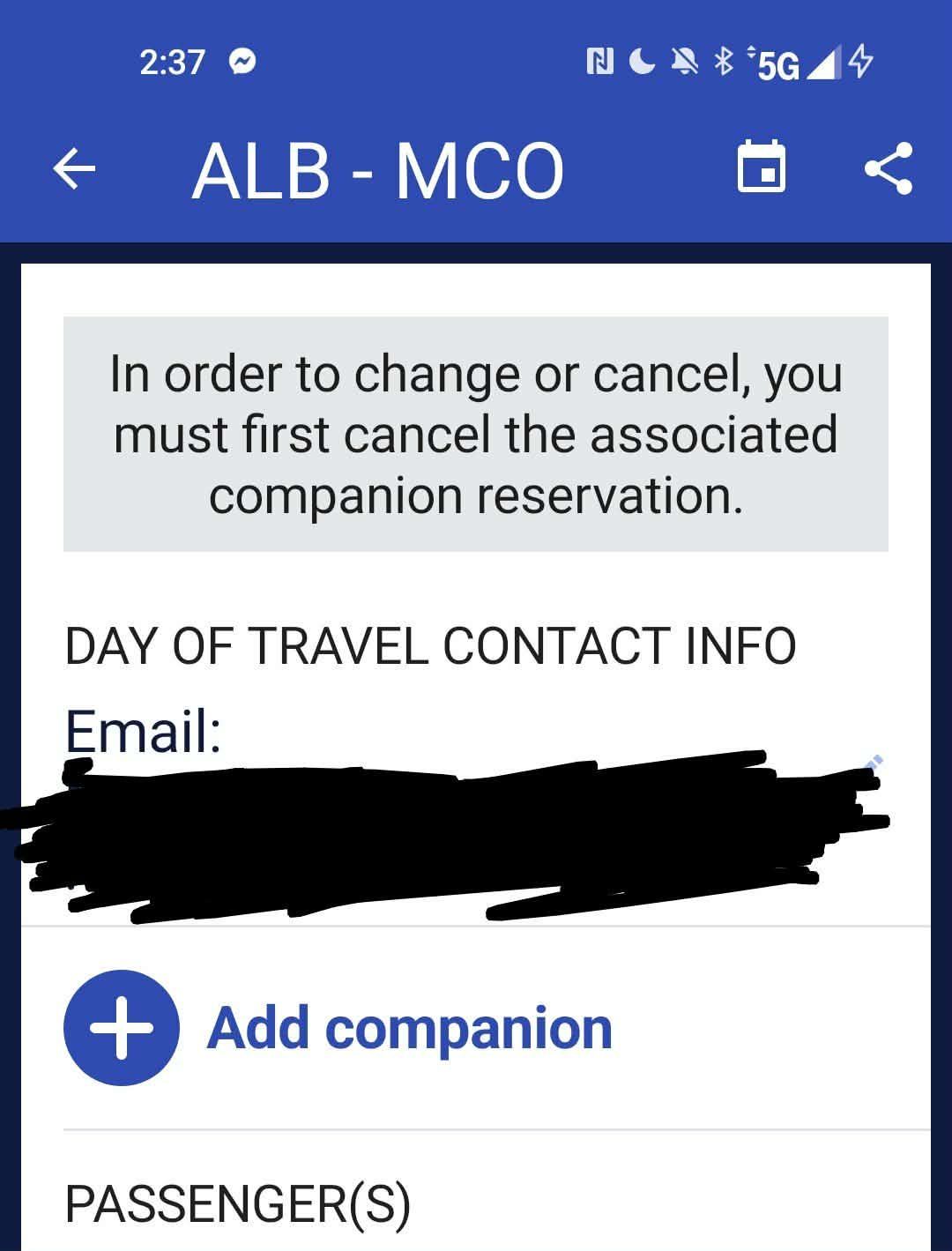
- Verification: Upon testing the mobile application theory, it was confirmed that the Southwest Airlines app displayed the "Add Companion" button for Player 2, even when Player 1’s companion was already attached to the PNR. The process was completed without error, and the second companion was successfully added to the flight.
The Mobile Application Solution: A Technical Analysis
The success of the mobile app workaround suggests a divergence in the codebase between Southwest’s legacy desktop site and its more modern mobile infrastructure. In software development, "mobile-first" strategies often lead to the creation of more flexible APIs (Application Programming Interfaces) for apps, while desktop sites may still be tethered to older, more rigid validation scripts.
In this case, the desktop site appears to have a "one companion per PNR" validation check that triggers an error if the existing companion’s name does not match the secondary traveler’s designated companion. The mobile app, however, appears to evaluate the eligibility of each traveler on the PNR independently. When Player 2 accesses the reservation via the app, the system checks Player 2’s individual status, sees the Companion Pass eligibility, and initiates the booking flow for their specific designated companion, regardless of the other passengers on the record.
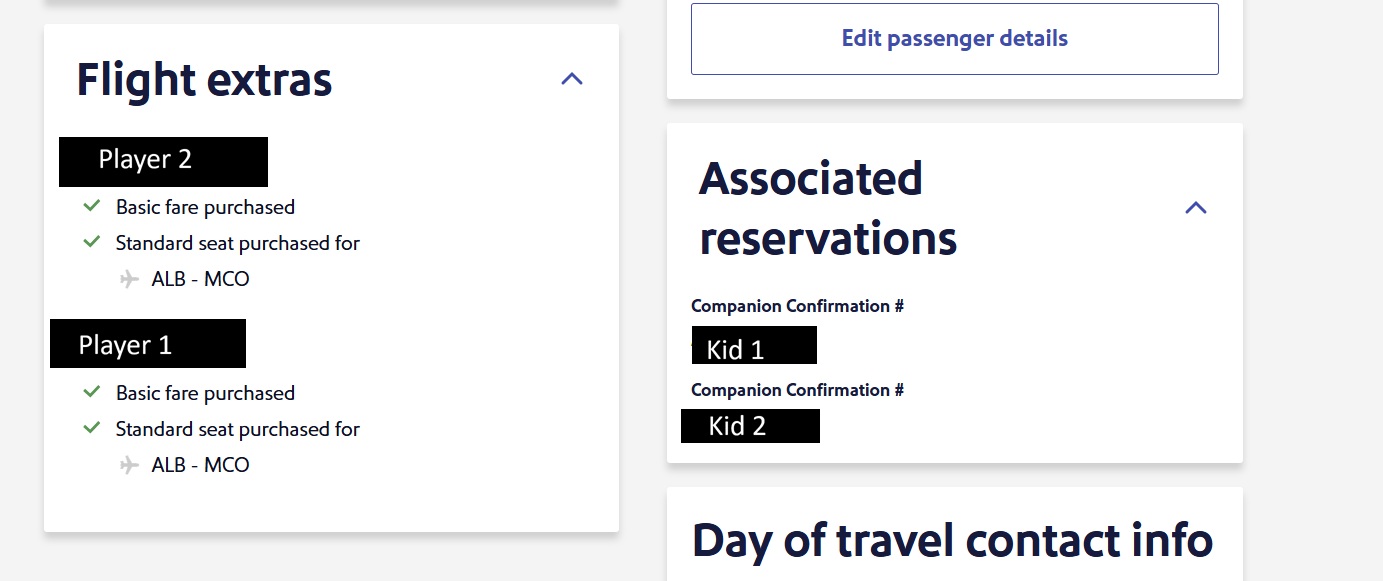
Interestingly, once the second companion is added via the app, the desktop site is capable of displaying the updated reservation correctly. It shows both primary travelers and both companions, each with their associated confirmation numbers. This confirms that the limitation is not within the database itself, but rather within the user interface (UI) logic of the desktop booking engine.
Data Insights: The Shift Toward Mobile-First Travel Architecture
This phenomenon is not unique to Southwest Airlines. The travel industry has seen a massive shift toward mobile usage over the last decade. According to market data from 2023, approximately 70% of all travelers research their trips on a smartphone, and mobile booking app usage has grown by over 25% year-over-year.
Airlines have responded by prioritizing app development. This often results in "feature disparity," where certain functions—such as same-day standby, seat tracking, or, in this case, complex companion bookings—are more robust on mobile platforms. For Southwest, an airline that manages its own distribution and avoids third-party sites like Expedia for most of its bookings, maintaining a seamless internal IT environment is critical. However, legacy systems often create "ghost" restrictions that only surface in niche scenarios, such as the dual-Companion Pass holder situation.
Strategic Implications for Group Travel Management
While the app workaround is a significant relief for families, it does not solve all the logistical hurdles inherent in the Companion Pass program. Travelers should be aware of the following implications:
The PNR Fragmentation Problem
Even when using the app workaround, the companions are not technically on the same PNR as the primary travelers. Southwest’s system generates a separate confirmation number for every companion. Consequently, a family of four using this method will end up with three separate confirmation numbers: one for the two primary travelers and one for each of the two companions.
Check-in Logistics
Because there are three separate confirmation numbers, the "24-hour check-in" process must be performed three times. This is a critical step for Southwest passengers, as check-in time determines boarding position. If the primary travelers have "A-List" status or "EarlyBird Check-In," their companions do not automatically inherit the same boarding position; however, Southwest recently updated its policy to allow companions to board immediately after the pass holder, provided they are checked in.
The "No Daisy-Chaining" Rule
It is important to note that this workaround does not allow for "daisy-chaining." A traveler cannot be a companion on one reservation and simultaneously act as the primary pass holder to add another companion on that same ticket. The scenario described only works because both Player 1 and Player 2 are "paid" passengers (either via cash or Rapid Rewards points) and both independently hold the Companion Pass.
Broader Impact and Industry Context
The discovery of this workaround serves as a broader reminder for the "power user" in the loyalty space: when a desktop site fails, the mobile app (or the mobile web browser) should be the first alternative. This "multi-platform troubleshooting" is becoming a standard skill for navigating modern travel.
Industry analysts suggest that as airlines continue to upgrade their back-end systems (such as Southwest’s multi-year transition to the Amadeus Altéa platform), these types of UI glitches may eventually be phased out. Until then, the burden of discovery often falls on the consumer community.
For Southwest, which prides itself on being a "family-friendly" airline with its open seating and "Bags Fly Free" policies, resolving these niche technical barriers is essential for maintaining brand loyalty among its most frequent flyers. The dual-Companion Pass household represents the airline’s most loyal customer segment; ensuring they can easily utilize their benefits without resorting to technical workarounds is a clear area for future digital improvement.
Conclusion: Navigating Legacy System Limitations
The Southwest Companion Pass remains a gold standard for domestic travel value, but its technical implementation on the desktop site has not yet caught up to the realities of dual-holder households. By leveraging the mobile app, travelers can maintain the integrity of their group reservations, keeping the primary travelers on a single PNR while successfully adding both companions.
As travel technology continues to evolve, the discrepancy between app and desktop functionality will likely persist. Travelers are encouraged to keep both platforms updated and to consult community-driven data when encountering "system-says-no" errors. For now, the mobile app stands as the essential tool for families looking to maximize the most generous perk in the American skies.




 Chandra Hamzah
 Tatiana Tantri Indah Sari
 Anjar Salim